The ConnectUC Chat tab allows you to message other ConnectUC users, either individually or as a group chat.
Once a chat session has been initiated, all existing conversations can be viewed in the ‘Chat Messages’ section on the left side of the page.
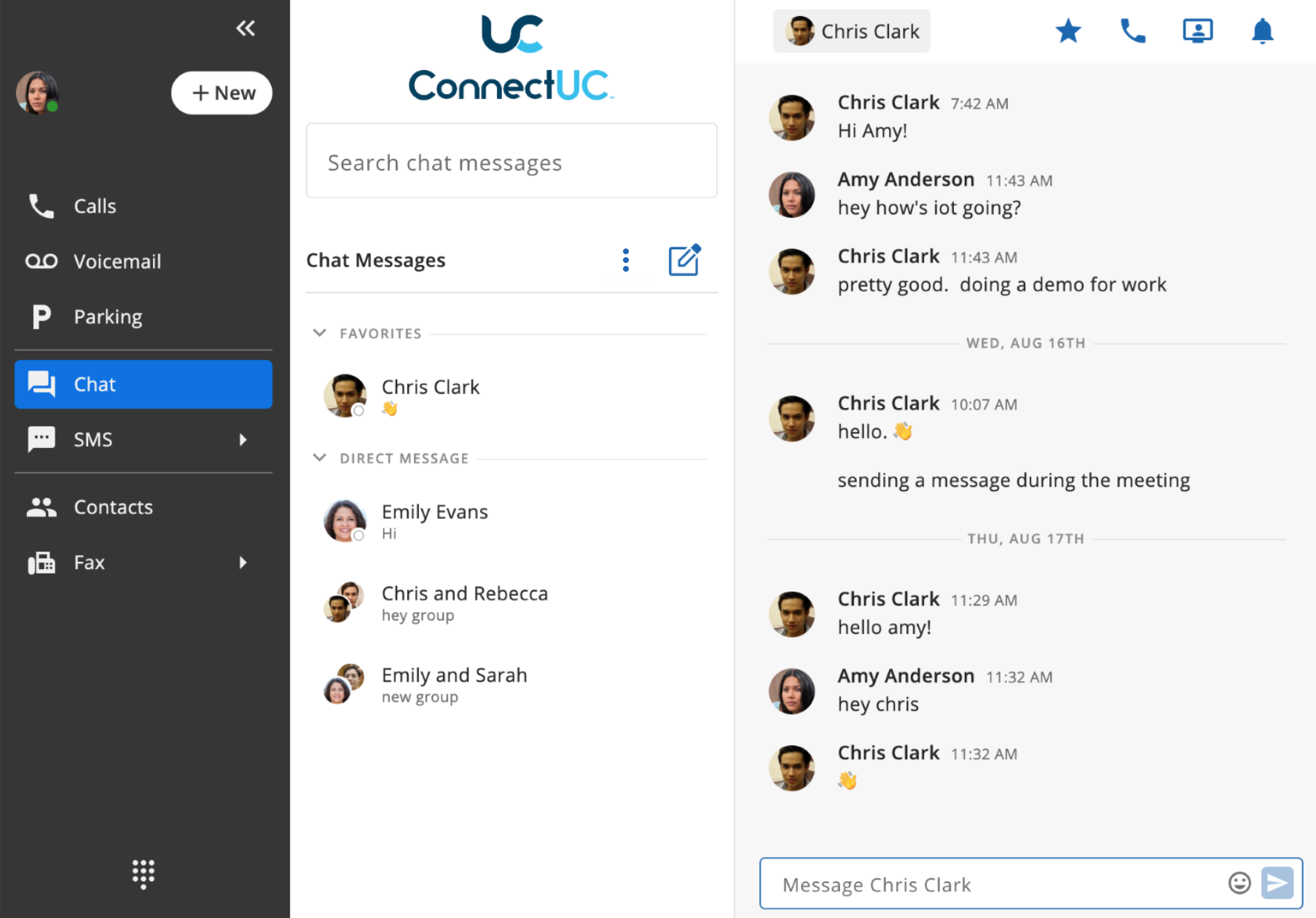
Similar to other tabs within ConnectUC, when you select a conversation with a contact, you can add them to your Favorites list (which will create a ‘Favorites’ section, as pictured above), initiate a call or meeting, or you may silence notifications for the conversation by utilizing the buttons found at the top-right corner of the screen.

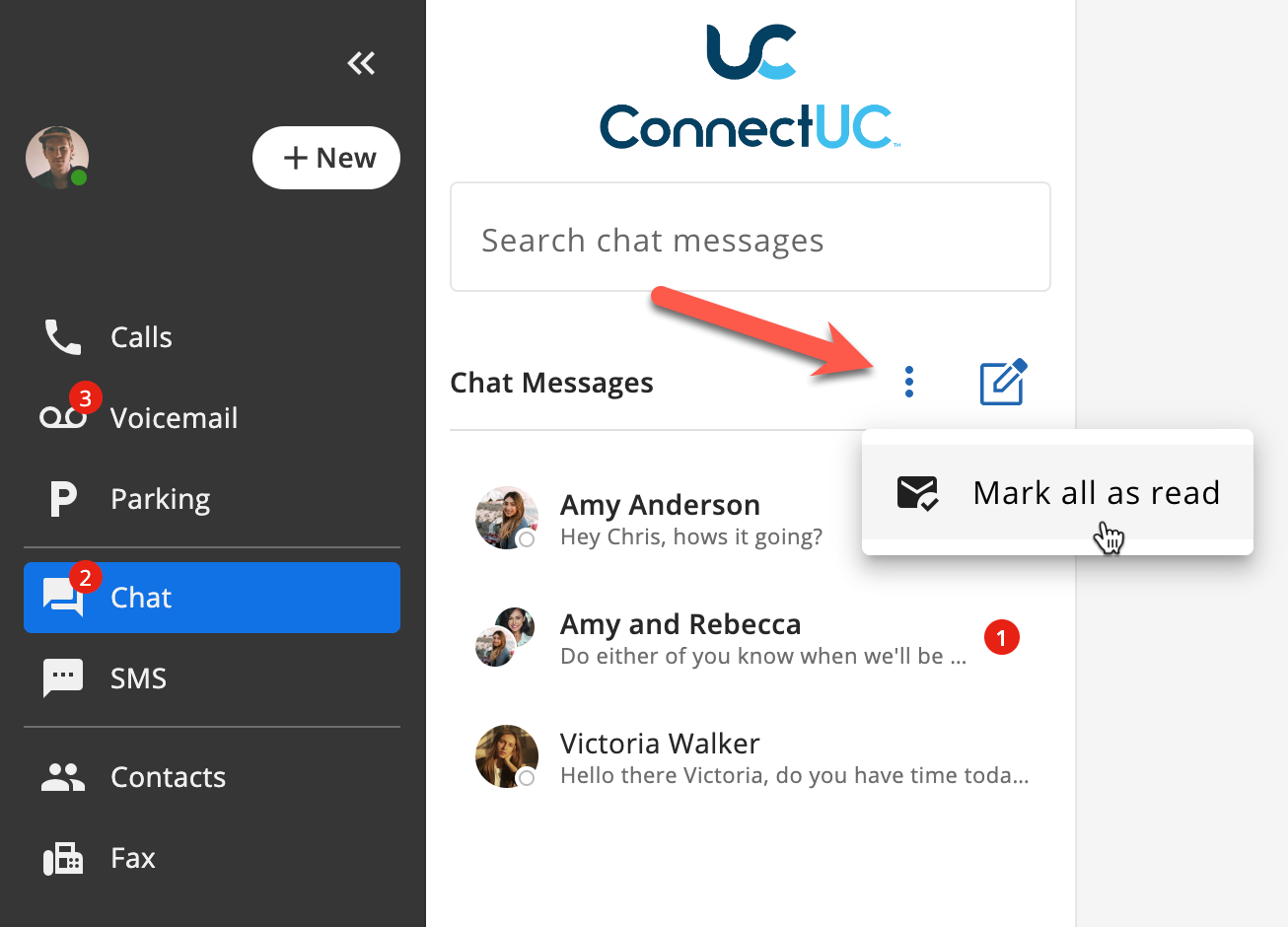
If a user has any unread chat messages, they will be indicated by a red number (indicating the number of unread messages) in the Chat tab. Viewing the chat messages manually will mark them as viewed and remove the red indicator. However, users may also mark all messages as read by clicking the "..." button found at the top of the Chat conversation section.
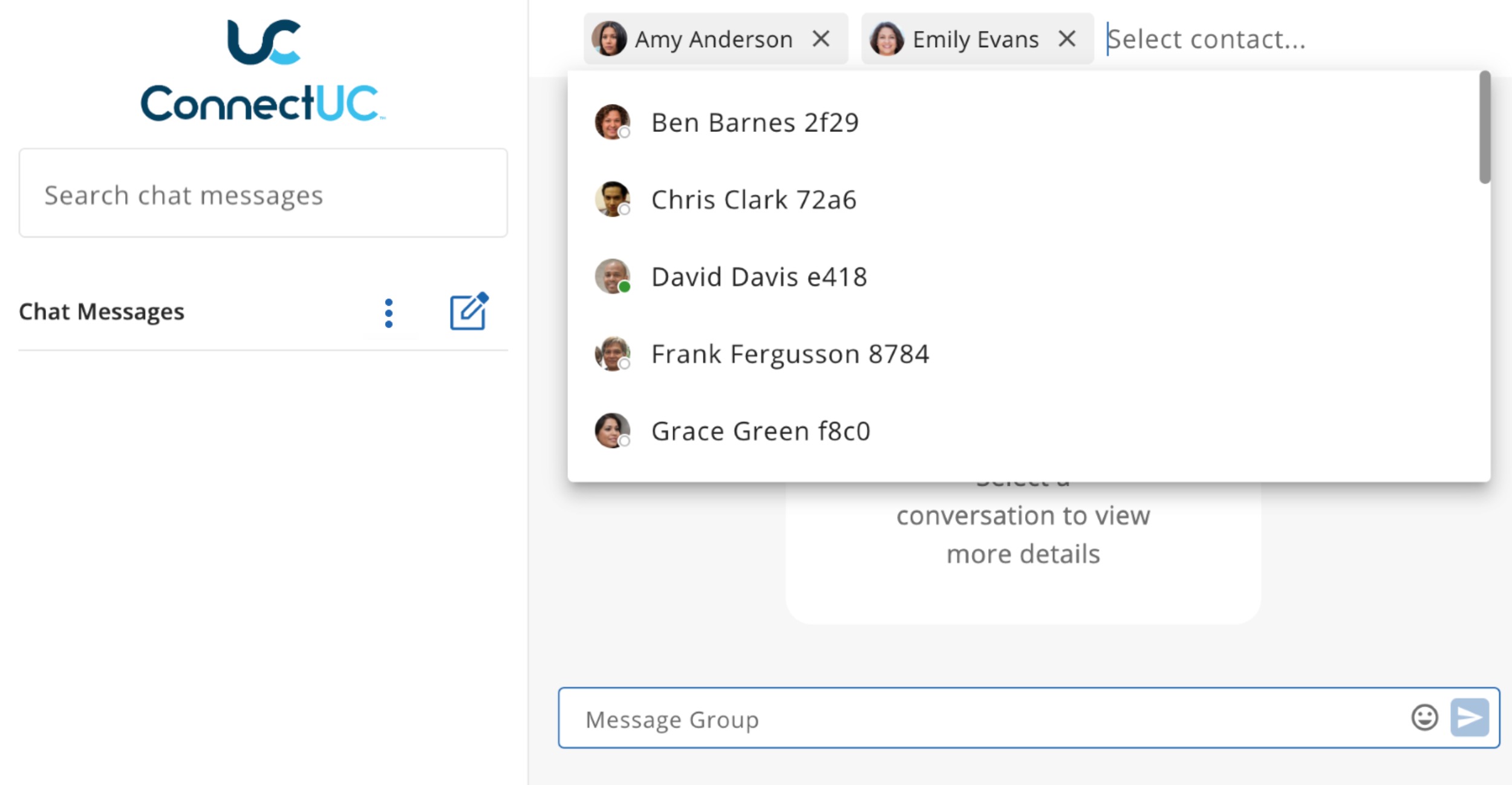
To start a new chat conversation, you can click into the ‘Select contact …' field at the top of the page and either select a contact from the list or you may search the contact’s name to locate them immediately.
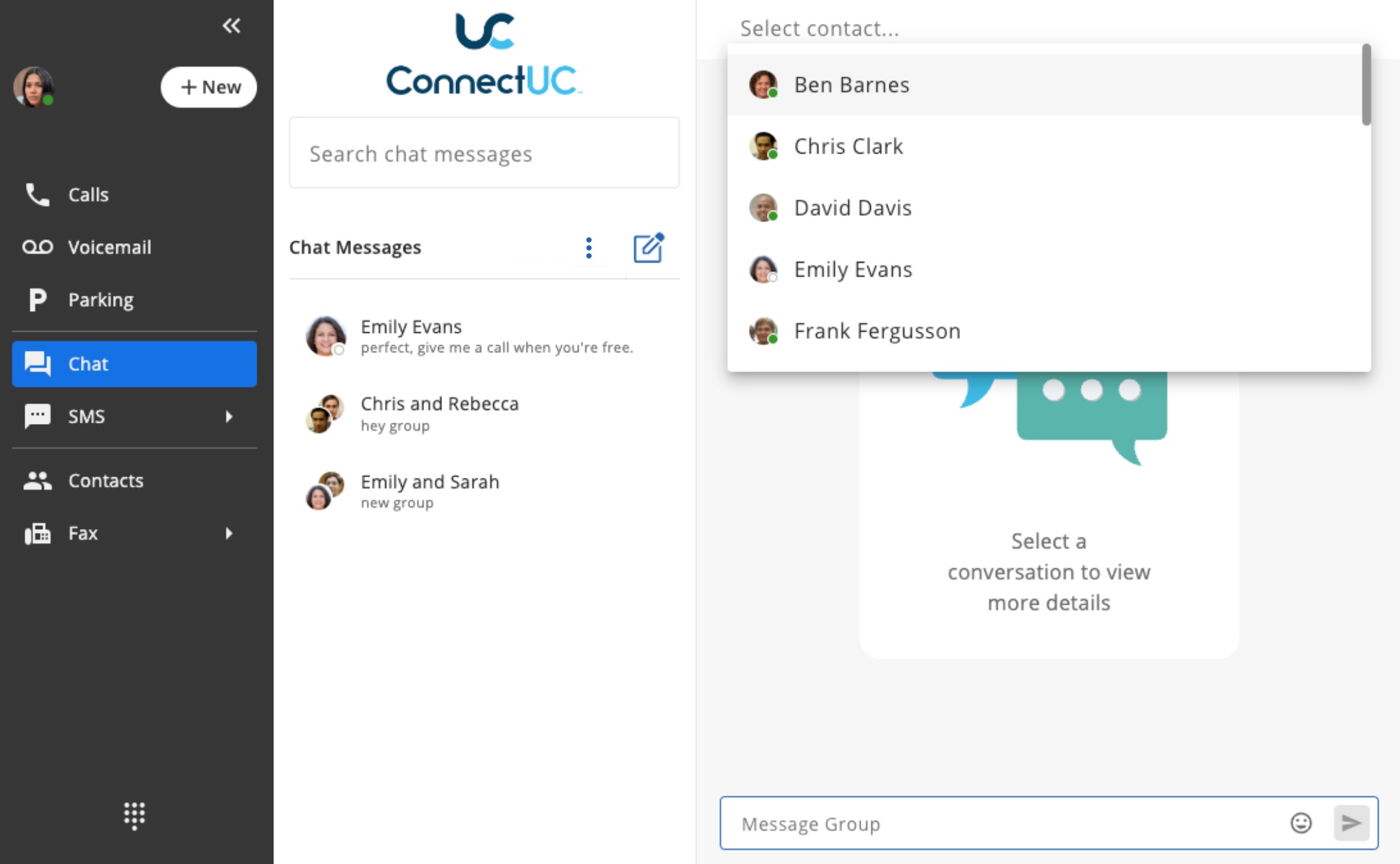
If you wish to start a multi-party chat conversation, rather than just selecting one contact from the top of the page, you can select multiple contacts to include. Once you enter a new message in the ‘Message Group’ field, the conversation will be initiated for all selected parties.
At the top right of a chat conversation, there are icons to Call or Meet with the other party. If the conversation is a group conversation, only the Meet option will be shown.
Sharing Voicemail, Fax, SMS, and Contacts via Chat
ConnectUC users may share Voicemails, Faxes, SMS Messages, and Contacts with one another via the Chat tab.
Each piece of shared data can be sent to one or multiple users by navigating to the appropriate tab, locating the Data you wish to share, and selecting the 'Share' option.
For example, if you want to share a Contact with one or more ConnectUC users, complete the following:
- Navigate to the Contacts Tab and click the contact you wish to share with another user.
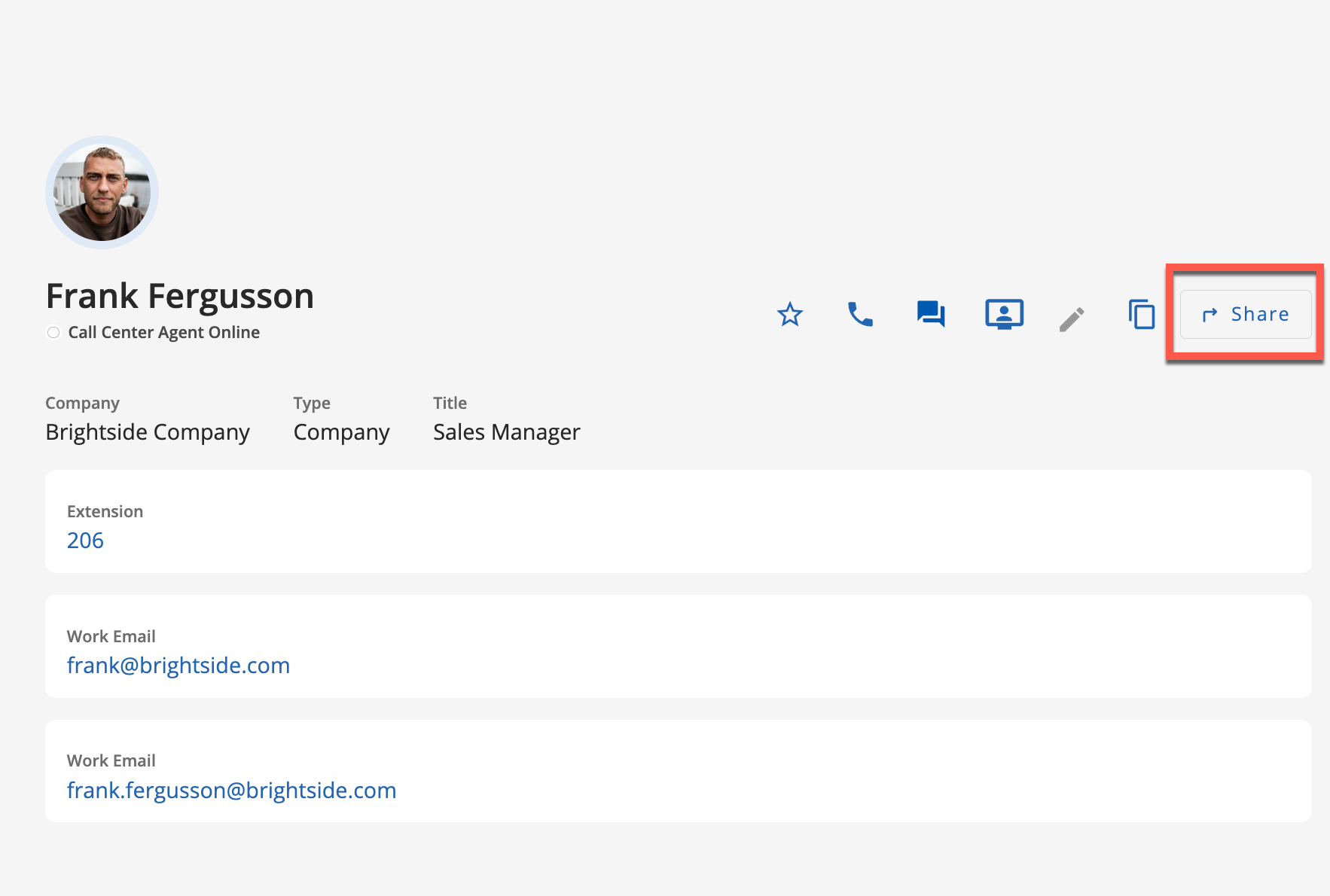
- Click the 'Share' option when viewing the contact details.
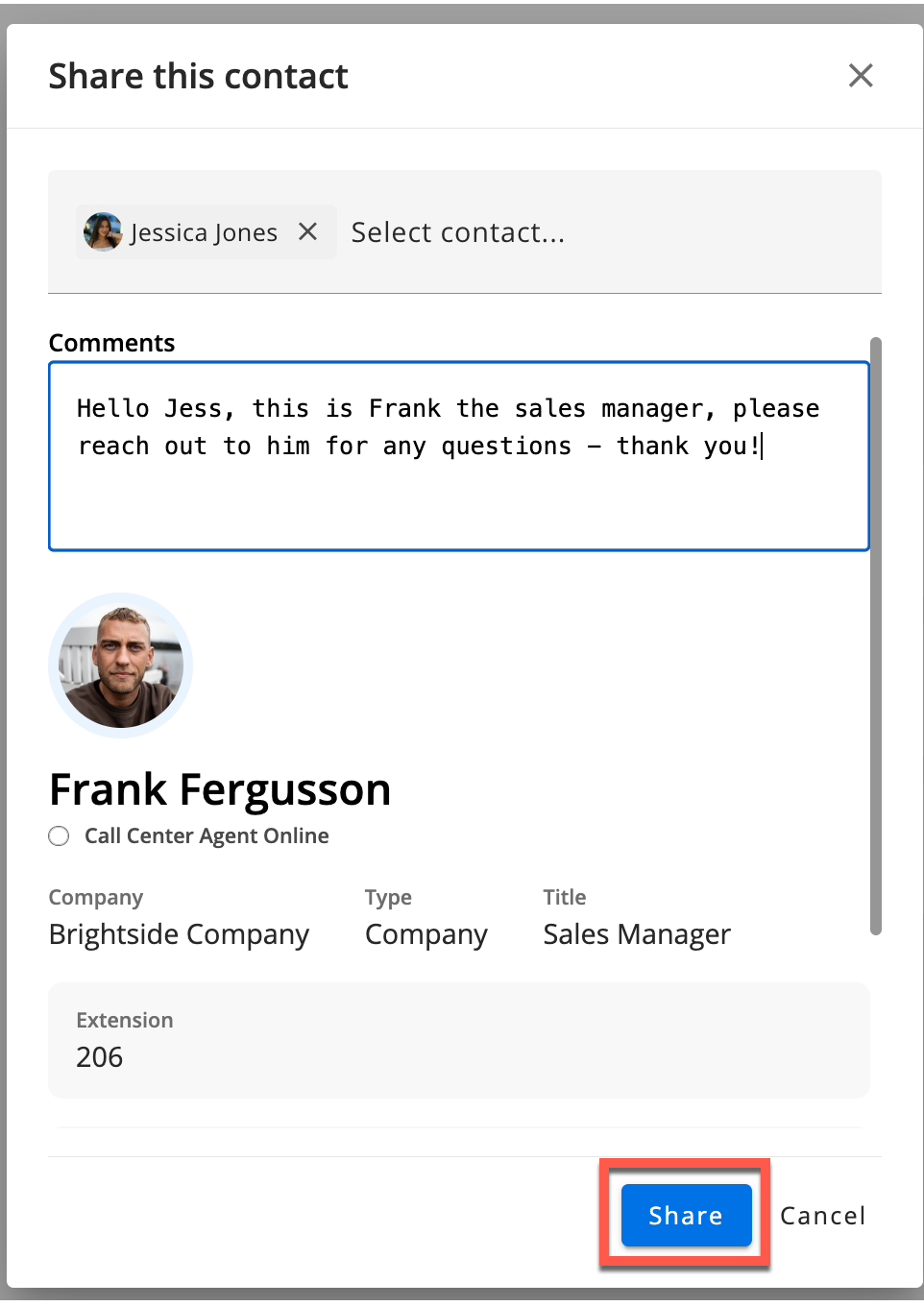
- Enter one or more recipients and optionally enter a comment which will be sent as a chat message and click 'Share'.
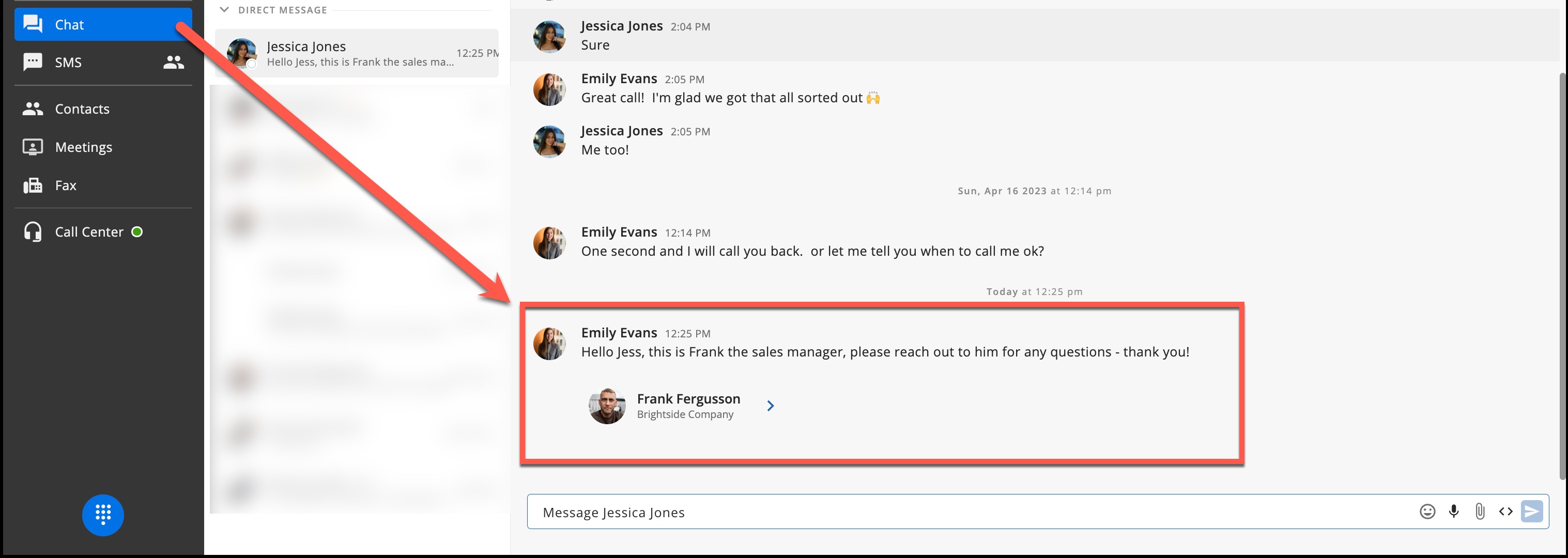
- Once sent, you will be able to navigate to the Chat tab, locate the recipient(s), and view the message, including the info you attached.
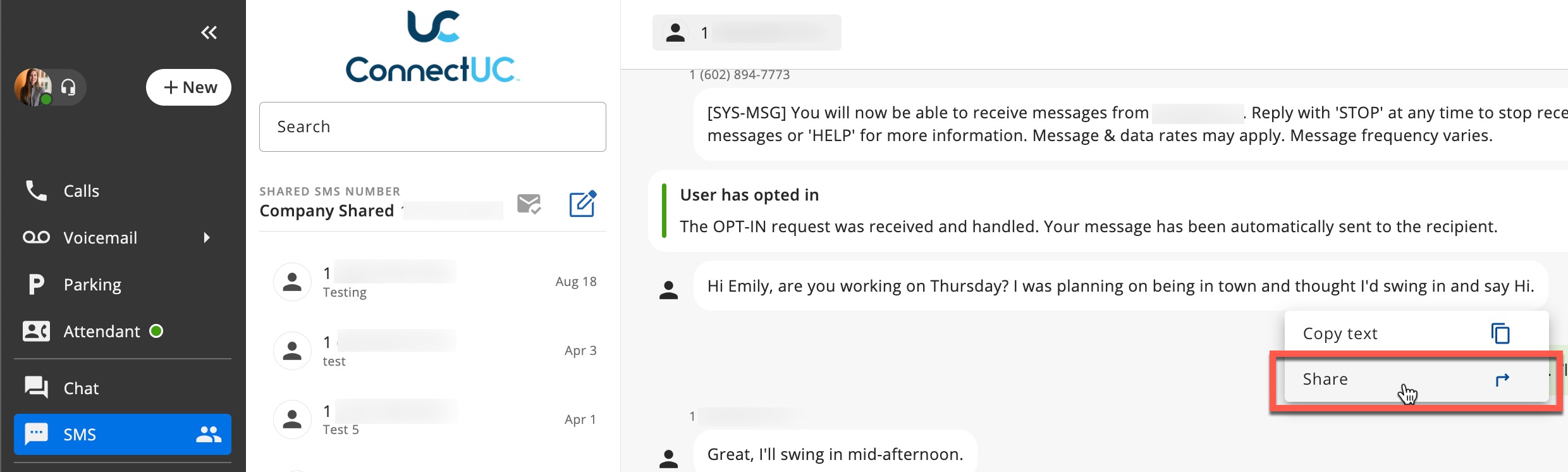
Similar to the above process, you may share individual SMS messages with other ConnectUC users by navigating to the SMS tab, clicking the message you wish to share, and clicking the 'Share' option.